FINALSTRACKER for Twitch
Three ways to show it


Panel, under your stream
The full card. Your Embark name with its verified check and badge, your league emblem, rank and rank score each with their 24 hour movement, and the rows you choose to show. Two buttons at the bottom send a viewer to your full profile and to the leaderboard.
Panels sit on your channel page whether you are live or not, so the card carries on working as a permanent part of the channel. It follows the viewer's own Twitch theme, light or dark, without you setting anything.
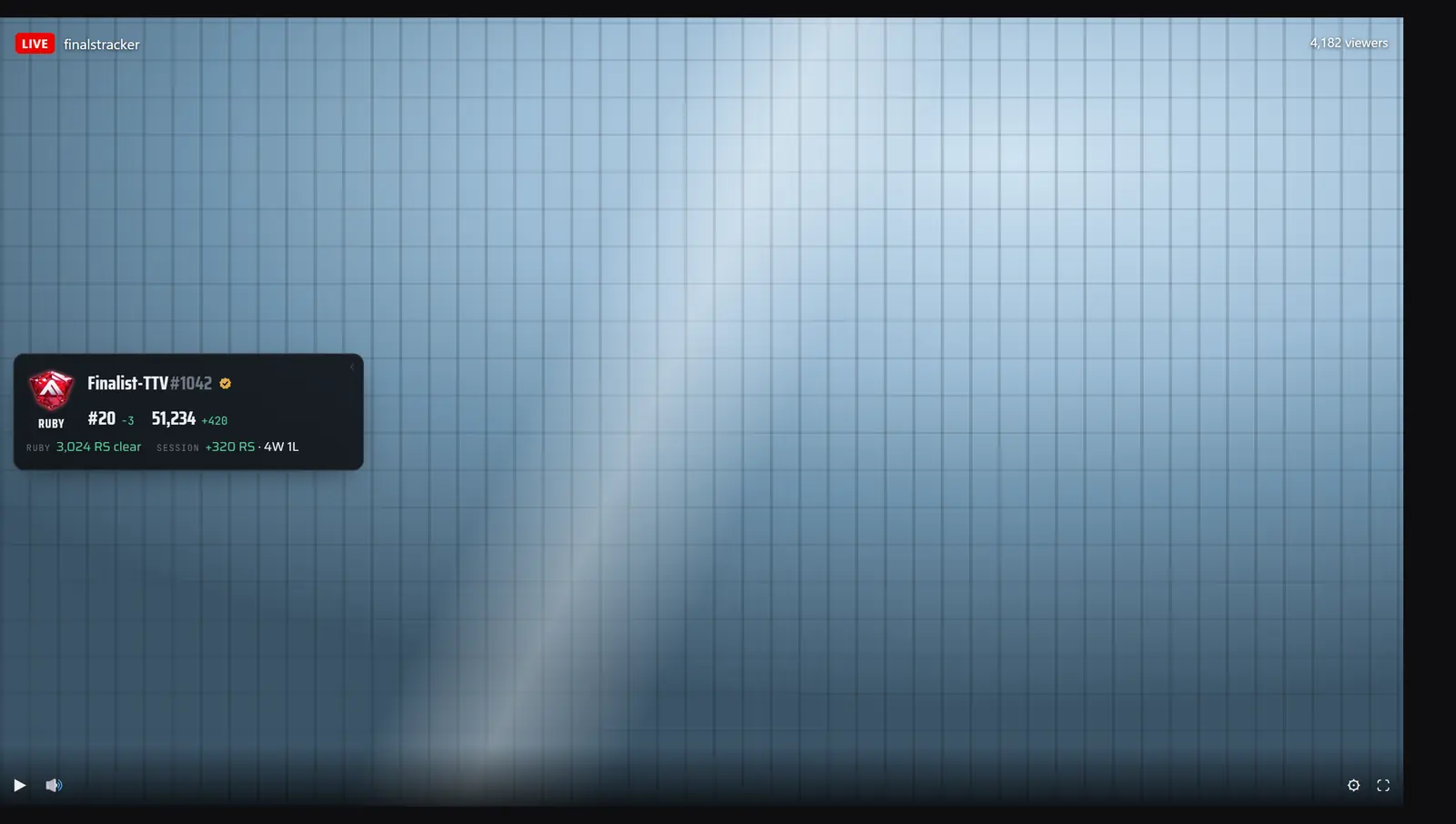
Video overlay, over your gameplay
The same numbers as a compact bar against the left edge of the player, in the one band that collides with nothing: clear of the title, the chat controls and the player's own buttons. No wordmark and no links over a broadcast, because on top of gameplay those are a band of branding and two things nobody clicks. It is the stats and nothing else.
The chevron in its corner collapses the bar down to a single rank marker when you want the screen clear, and brings it back when you do not.
Twitch gives a channel one overlay slot. If yours is already spent on alerts, use the component below instead: it is the same bar.

Video component, a box inside the player
The same bar again, in the slot Twitch reserves for smaller in-video extensions, with its own show and hide control for viewers.
Twitch hands this slot a different size on almost every machine, so the bar measures the box it was actually given and scales itself to fit it. Nothing is clipped at the small end and nothing is stranded in the middle of a large one, whatever you set the component's height and aspect ratio to.
What it shows
Rank, league and rank score
Your place in the top 10,000, your league and division with its emblem, and your rank score. Rank and rank score each carry their 24 hour movement beside them, so a viewer arriving mid-stream can see which way the day has gone.
The session you are on
Net rank score and a win/loss count for the run you are playing right now, not for the calendar day. A session ends after 75 minutes with no result, the same rule the profile pages use, so the card and the site never disagree about what today looks like.
Distance to Ruby
How far above or below the top 500 line you are, in rank score. The single number a Ruby push is actually about, and the one your chat will ask for.
Season peak
The best rank we have recorded for you this season, so a rough night still shows where you got to.
Your profile carries over
If your Embark ID is linked on your account, the card shows what the site shows: the verified check, the tournament badge you chose to display, and your name colours, which also tint the card's edge and header.
Below the board, or not on it yet
Embark publishes a top 10,000 and nothing under it. An account that slips below keeps its card, with the rank and score marked as estimates in a line the viewer can read.
Not placed yet? Save your Embark ID anyway. The card says so plainly, and fills in by itself the moment you land on the board.
It updates itself
Nobody has to refresh anything. When the leaderboard moves your numbers the new card is pushed to everyone watching, and a quiet stream re-checks every 15 minutes as a backstop. The panel's footer says how long ago the figures were last confirmed, so a stale card can never pass itself off as a live one.
You choose what appears
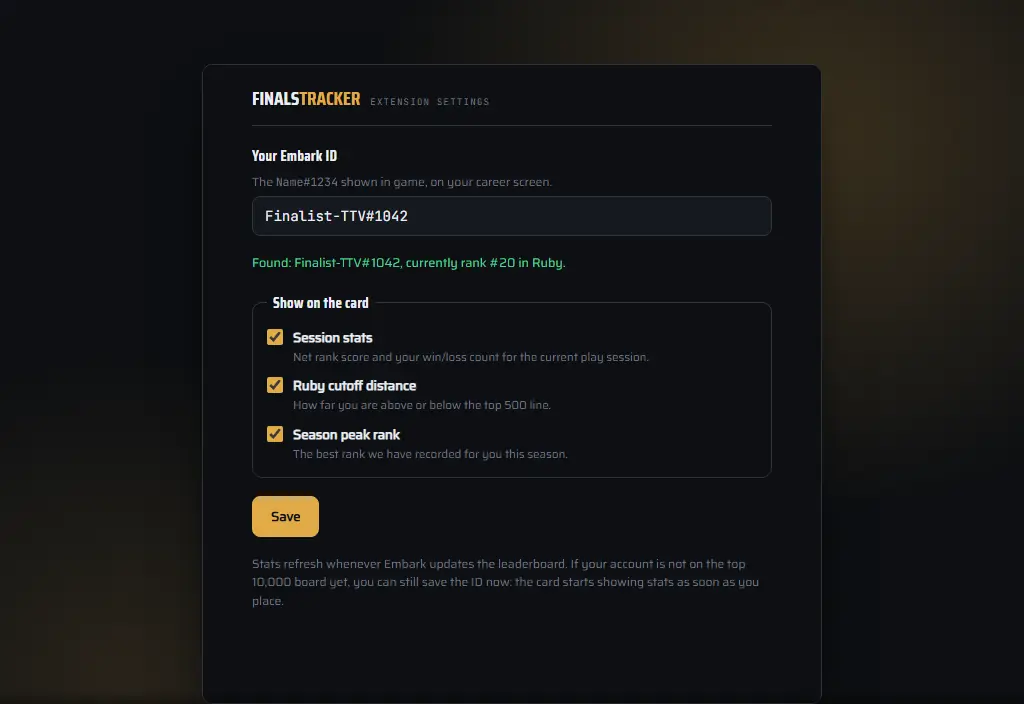
Session stats, Ruby cutoff distance and season peak are each a tick box in the settings. Turn any of them off and the row goes, on every view at once.
How to add it
- Open your Twitch Creator Dashboard and go to Extensions in the sidebar.
- Search the catalogue for FinalsTracker.net, or open the extension directly, and press Install.
- On My Extensions, find FinalsTracker.net and press Configure.
- Type your Embark ID, the
Name#1234shown on your career screen in game, and press Save. The settings screen names the account it found as you type, so a typo cannot go live silently. Untick anything you would rather not show while you are there. - Back on My Extensions, press Activate and choose where it goes: one of the three Panel slots, the Video Overlay slot, or a Video Component slot. A panel and a video view can run at the same time.
- The panel appears under your stream straight away. The overlay and the component only render while a channel is live, so check those from your own channel page during a stream.
Good to know
Nothing for your viewers
No install, no login, no account. They open your channel and the card is there.
Nothing to run on your PC
No OBS source, no browser source, no capture and no software of any kind. Twitch serves the extension and we serve the numbers, so it works the same from a console stream or somebody else's machine.
What it can and cannot know
It reports Embark's public ranked leaderboard, which is what the rest of this site is built on. It is not match telemetry, it never reads your game, and it cannot know anything the leaderboard does not.
What we store
One row for your channel: the Twitch channel id, the Embark ID you typed, and the three tick boxes. Nothing at all about the people watching. The privacy policy has the full list.
Desktop and web
The three views above are built and tested for Twitch on desktop and in a browser. It is not registered as a mobile extension, so it does not appear in the Twitch mobile app.
Something wrong?
A card saying the channel has not linked an Embark ID means the ID has not been saved yet, and one saying stats are unavailable is us, not you. Either way, support is the place to tell us.